
The UI
A tour of the Expecto Centum dashboard: what sits in each corner, what the row of machines shows, the controls you have during a run, and where to read what the agents are doing.
This tour assumes the app is set up to run a workflow — see Getting started.
The dashboard shows one workflow at a time. Across the middle stand its stages, drawn as machines in a row; around them sit the controls for the workflow on screen and, in the corners, the ones that belong to the app as a whole.
I The corners
- Settings — the gear at the top left. It opens the configuration every Config → … step in these manuscripts refers to: General (your local repositories), Connections (coding agents, ticket sources and Git hosts) and Workflow (a tab per stage).
- Workspace — the button beside the gear, with the current workspace's name. Each workspace keeps its own repositories, board and run history; pick another to switch, or create, rename and delete them from the same list. It's locked while a scan or a run is going.
- Your account — the top-right corner: a link to sign in, or once you have, your account.
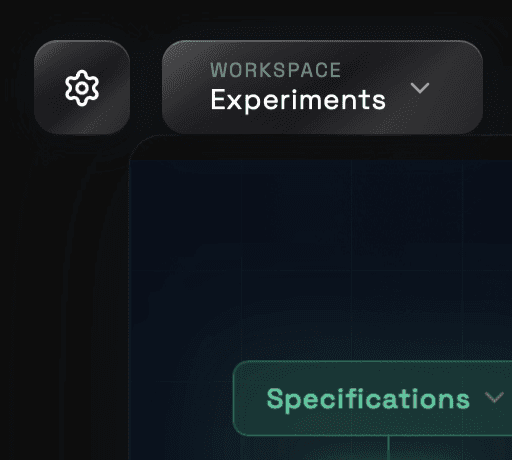
These three share a metal finish, which marks the controls that stay put whatever workflow is on screen.
II The header
Along the top, for the workflow on screen:
- The workflow's name, with a line on when to use it.
- The ticket dropdown, next to the name — the ticket Start begins with. It defaults to the top of the queue; pick another queued ticket to start there. During a run it's locked to the ticket being worked on.
- The kanban icon, beside the name, opens the board. A red count on it is the number of tickets waiting on you in Attention; the other count is the work still in flight.
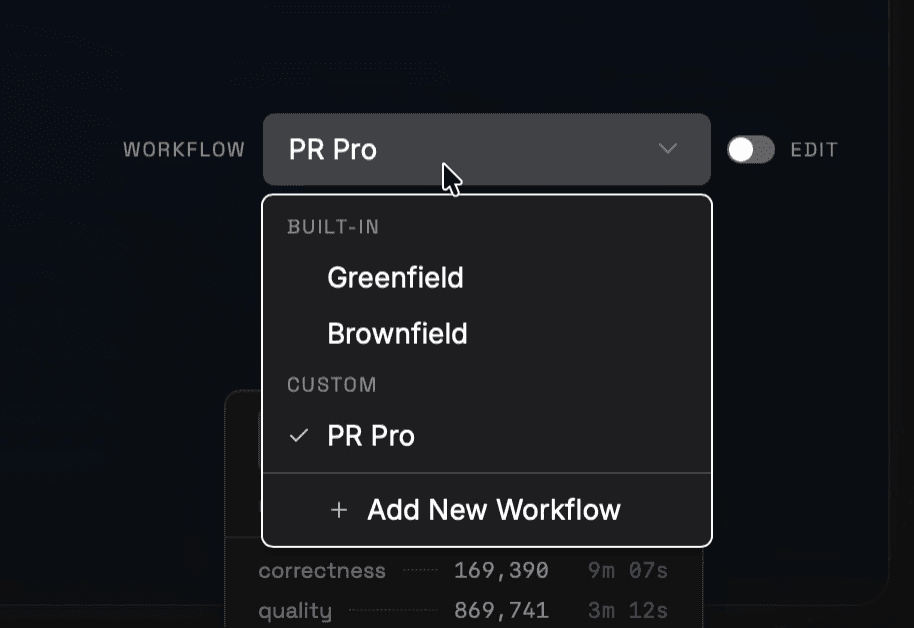
- The workflow picker, on the right, switches workflows. For a custom workflow, an Edit switch beside it opens the workflow editor.
III The stage machines
Each machine is one stage of the workflow, labelled above; a machine with two labels runs two stages, top first. Machines stand dimmed and light up as their stage runs. A Ticket Loop bracket beneath the row marks the stages that run once for every ticket; stages outside it run once per run.
- Scan or Create, under the first machine, fills the board — from your trackers, or from a request you write.
- Start runs the queue, and shows how many tickets are in it: Start (3).
- A warning badge on a machine means it's missing something it needs, such as a coding agent or a filter to scan. Click it to go to the setting that fixes it; until then, the buttons that would run into it stay disabled.
- Live / Test — on a custom workflow, each machine carries a pill. A stage pinned to Test plays back stand-in results instead of calling an agent, so you can rehearse a run for free.
IV Run controls
While a run is going:
- Pause, under the working machine, lets the current stage finish, saves the ticket's progress and ends the run there. Resume then appears under the stage the ticket picks up at, and carries on without repeating what was done.
- Skip Ticket, in the header, gives up on the current ticket and moves to the next. During a stage that runs once per run it reads Skip Stage.
- Stop run, beside it, ends the run. The ticket in progress goes back to the queue, so Start picks up from the same place.
V The Execution Console
The Console is the floating window in the bottom-left corner, where the run is narrated as it happens. Each line is tagged with the stage that wrote it, and each stage opens with a line on what it's about to do for the ticket. While an agent works, its text, the tools it calls and the commands it runs stream in, so you can tell a slow agent from a stuck one. The Console's title bar names the agent and model doing the current work. Drag the window by its title bar and resize it from any edge; it remembers where you left it, and the red dot puts it back in the corner.
VI The token meter
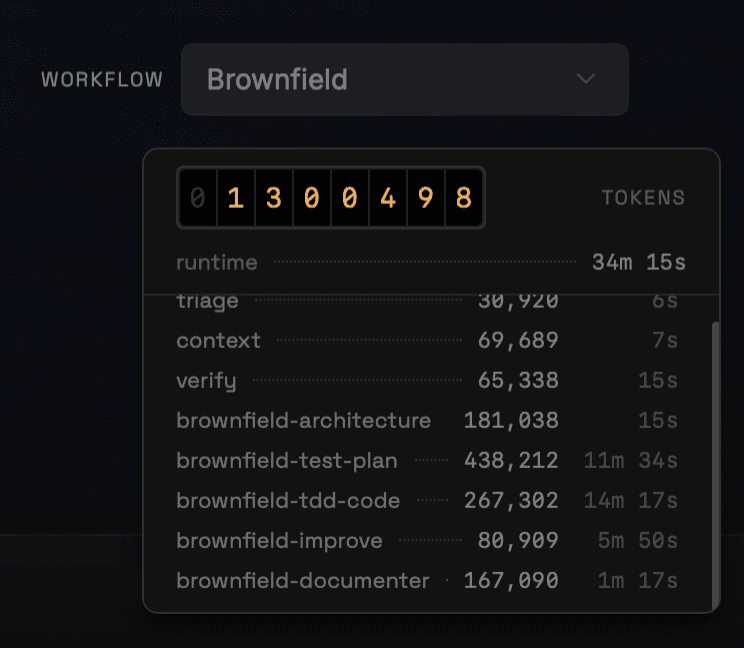
The bottom-right corner holds the run's token meter: a rolling counter of the tokens the run has used, with its running time beneath. As stages report, a ledger below it lists each stage's tokens and time. The meter starts again with each run — a resumed ticket opens at what it had already spent.
VII After the run
- The status pill, at the top, sums the run up in one word — Complete ✓, or the thing most worth your attention, such as 2 tickets failed or 1 ticket skipped.
- Run summary, beside the pill, lists every ticket the run touched, with its outcome and any pull request it opened.
- A preview — when a ticket's branch has a site or an app to run, a small window opens beside the Console to show it.
VIII Notices and dialogs
Notices — a run that failed in another workflow, a plan that doesn't cover a step — appear as messages in the corner and stay until you close them. Every dialog has − and + in its top-right corner to make its text smaller or bigger; click the percentage between them to go back to 100%. ⌘−, ⌘+ and ⌘0 do the same (Ctrl on Windows and Linux).
IX The kanban board
Every ticket the workflow knows about is a card on the board, in a column for where it stands: Backlog, Queue, Processing, Merged, Attention and Done. You decide what the next run takes by moving cards into Queue. The kanban board covers it in full.