
Connect Asana with an Asana MCP app
Register an app in Asana's developer console and bind it to Expecto Centum so the Scan stage can pull your tasks — a client ID and secret, plus one redirect URL that has to be entered exactly.
You'll need: an Asana account in the workspace you want to scan, the Expecto Centum desktop app installed, and a plan that carries tracker integrations — Asana is a House Hundredfold feature, which the Hundredfold plan, the Openfold grant and the free trial all include.
Asana issues tokens only to an app registered in its own developer console, so there is no shared app to sign in through. You create one under your Asana account, tell it where to send the browser once you approve, and paste its client ID and client secret into Expecto Centum. The connection inherits your own access exactly, and the workspace comes with the authorization — there is nothing else to pick.
The secret is stored encrypted with the connection on this device and used to renew the sign-in, which Asana expires every hour. Nothing leaves the machine.
Step I Open Asana's developer console
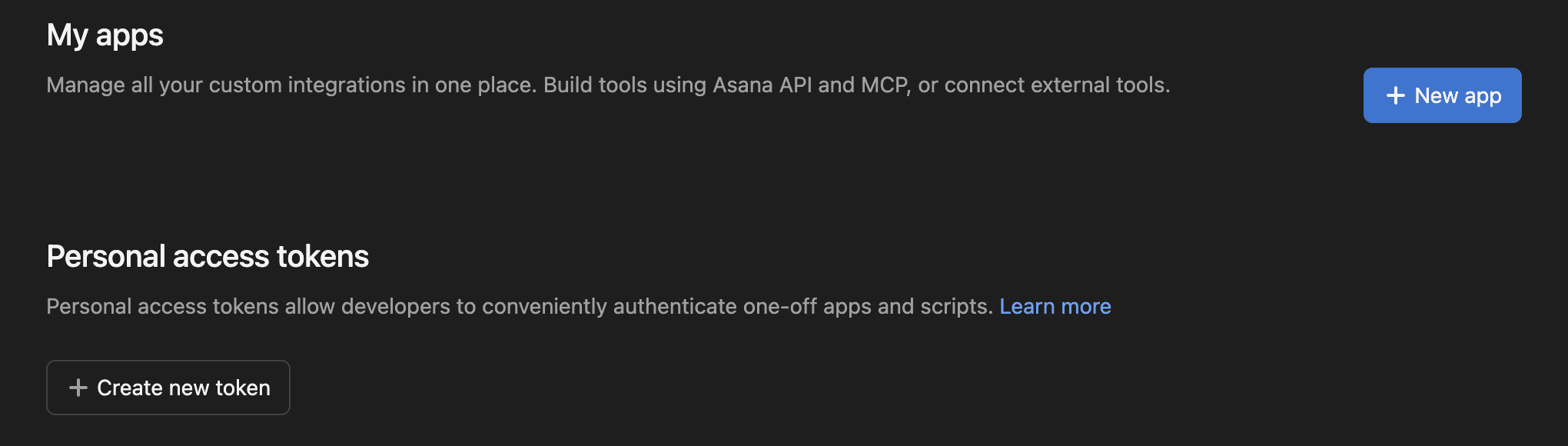
Sign in to Asana and open app.asana.com/0/my-apps. The My apps page lists any apps you've already registered, with a New app button to the right of the heading.
The Expecto Centum connect panel links here too — Open Asana's developer console sits under the client ID and secret fields, so you can keep both windows side by side.
Step II Create the app
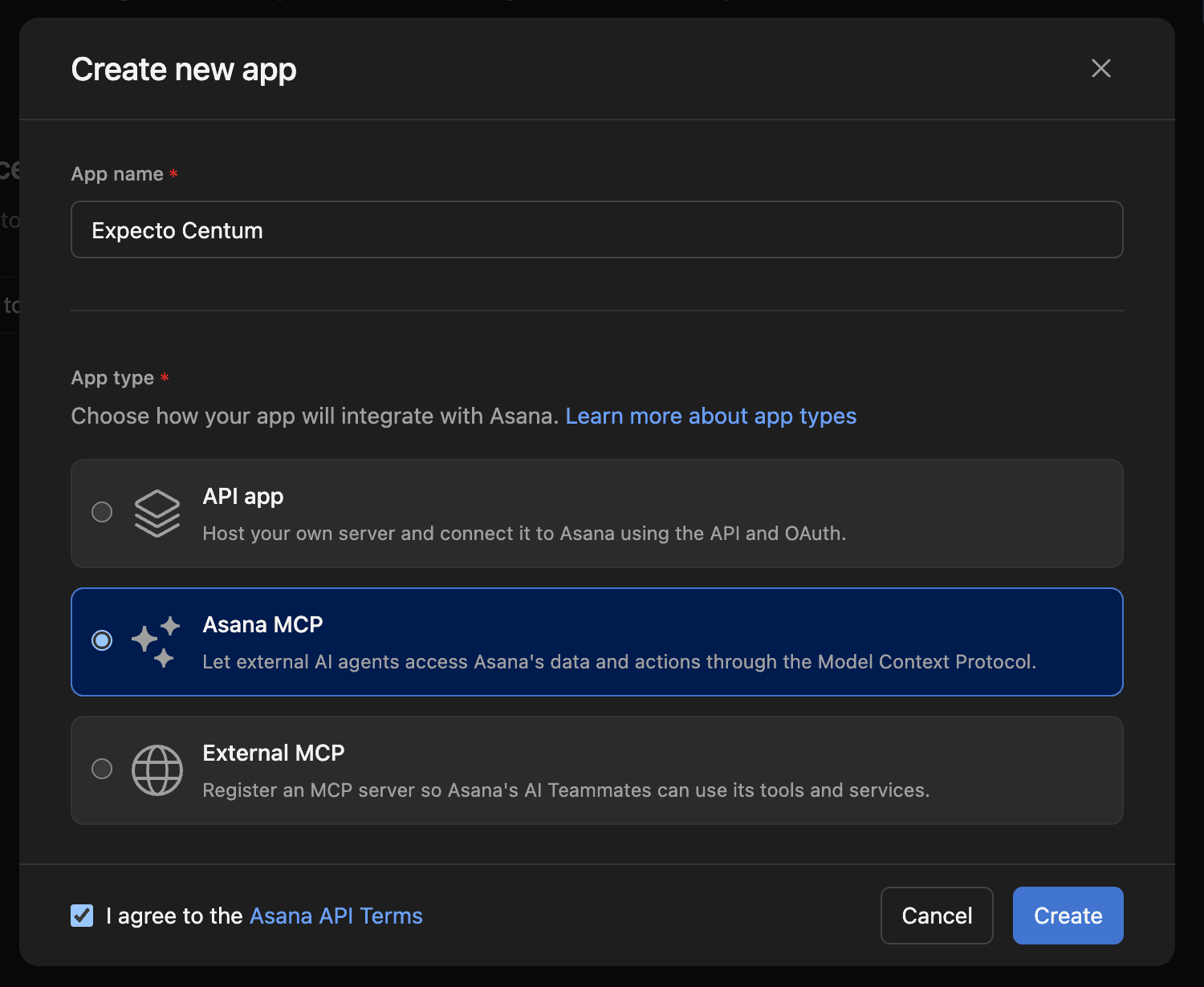
Click New app. The dialog asks for a name and a type:
- App name — something you'll recognize in the list later, e.g.
Expecto Centum. - App type — choose Asana MCP, the type the connect panel asks for.
- Tick I agree to the Asana API Terms and click Create.
Step III Add the redirect URL
Asana opens the new app's settings. In the left rail, under Configure, open OAuth, scroll to Redirect URLs and click Add redirect URL.
Paste the address the connect panel shows, exactly as written. It is a fixed address on your own machine, and the panel has a copy button beside it:
http://127.0.0.1:41823/api/mcp/callback
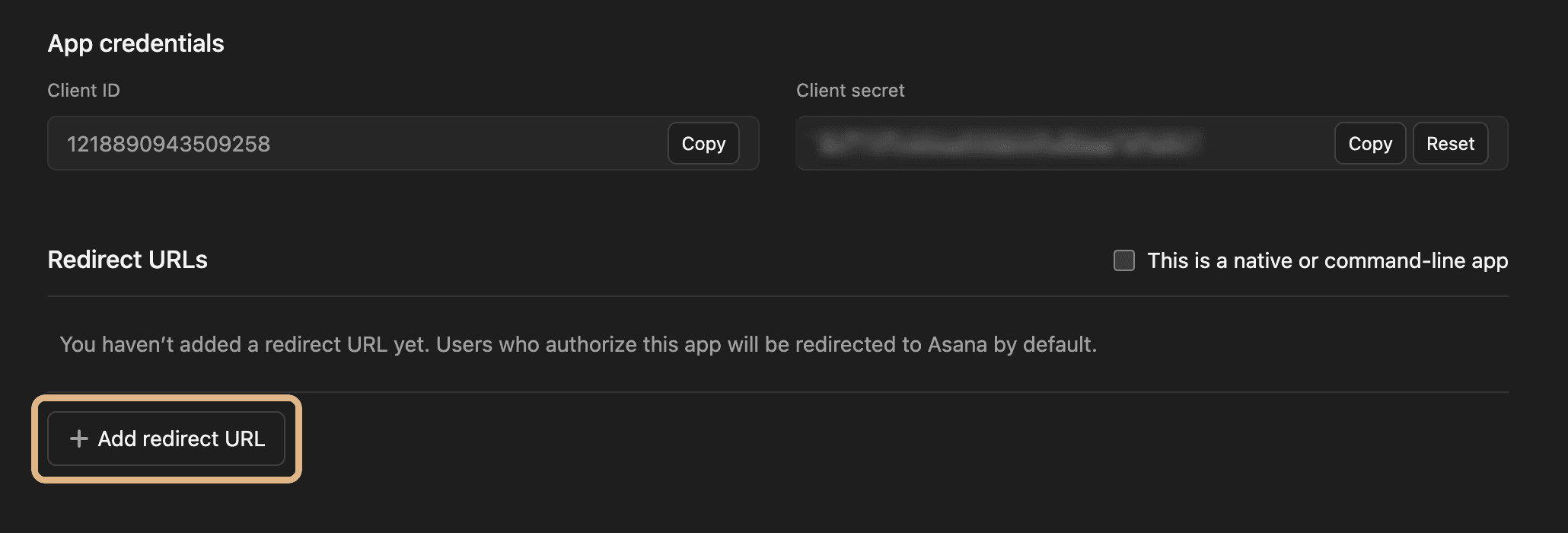
Asana accepts the address only as registered. A wrong port or a missing path shows Asana's “does not match a valid url for the application” page when you click Connect.
Step IV Allow your workspaces
In the left rail, under Test & distribute, open Manage distribution and allow the workspaces you scan. The workspace you grant when connecting is the one every filter on the connection reads from, so there is nothing to pick later.
Step V Copy the client ID and secret
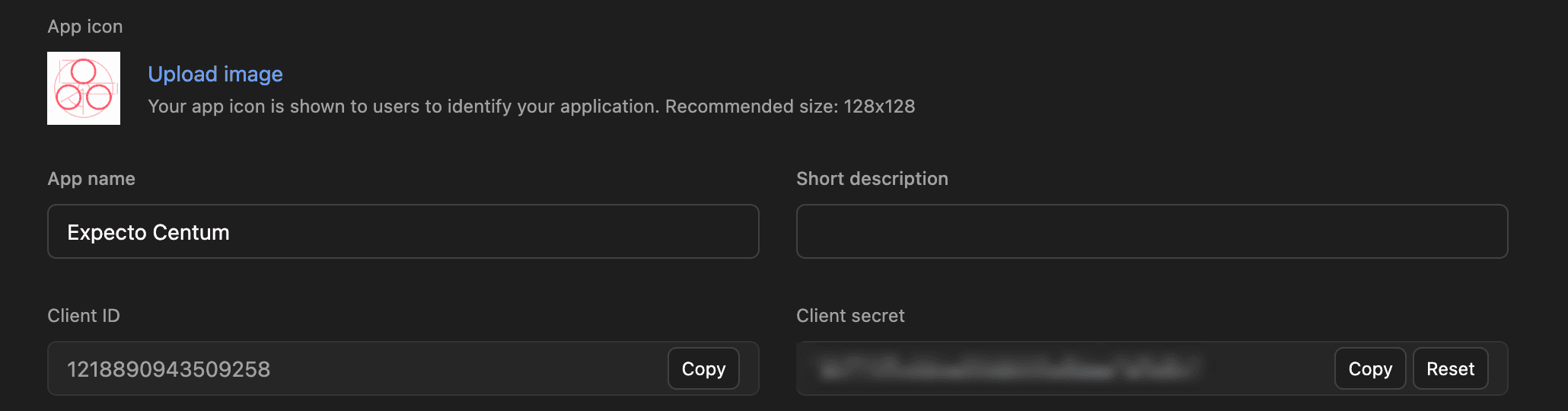
Open Basic information in the left rail — or stay on OAuth, which shows the same pair. Click Copy beside Client ID, then beside Client secret, pasting each into Expecto Centum as you go.
Step VI Paste into Expecto Centum
In the desktop app, open Config (the gear, top-right) → Connections → Ticket sources → Connect ticket source, and choose Asana from the Tracker dropdown. The panel asks for:
- Client ID — the value copied in Step V.
- Client secret — likewise. Input is password-masked.
Click Connect. Expecto Centum opens your default browser at Asana's approval page; approve there, and Asana sends the browser back to the redirect address, where the app is listening. On success the connection is saved and listed under Ticket sources, labelled with your Asana account's email.
Pressing Connect while signed out of Expecto Centum asks you to sign in first. On a plan that stops short of Hundredfold, a Tracker integrations need a plan dialog says so and links to the plans page.
Step VII Add a filter
A connection on its own doesn't scan anything. In Config → Workflow → Ticket Scan, under Ticket sources, click Add filter on the Asana connection and choose what to scan: A project, or My Tasks — every task assigned to the connected account, in any project or none. A project scan reaches only the tasks added to that project.
Either scope can be narrowed by tag, free-text search, or completion state; a project scan can also be narrowed by section and assignee. Tag and Search use Asana's task search, which Asana offers on Premium workspaces — on a free workspace a filter with either set is refused when scanned, with a message naming the filter.
Step VIII Disconnect or reconnect
The sign-in renews itself in the course of being used, so there is nothing to rotate on a schedule. Disconnect immediately if a machine is lost or you no longer want the pipeline acting as you.
- To disconnect: trash the ticket source in the Connections tab — this deletes the encrypted credentials from this device. Deleting the app from Asana's developer console withdraws the grant at the source too.
- To reconnect: a sign-in that has gone unused for months lapses for good; the filter dialog or the scan that meets it says so and points you back to Connect ticket source. Connecting the same workspace again refreshes the existing connection — its filters stay put.
✦ Troubleshooting
“The redirect_uri parameter does not match a valid url for the application”
Asana's page, shown instead of the approval screen. The address under OAuth → Redirect URLs doesn't match the one the connect panel shows — a wrong port, a missing path, or a stray character. Fix it there so it reads http://127.0.0.1:41823/api/mcp/callback, then click Connect again.
The panel says another copy of the app already holds the port
The redirect address is served by Expecto Centum itself, so only one running copy can listen on it. Close the other copy and click Connect again.
A filter is refused when scanned
Tag and Search narrowing use Asana's task search, which is a Premium feature — on a free workspace, clear those two and narrow by section, assignee or completion state instead. A filter that matches more than 1,000 tasks is refused the same way, with a message naming it; narrow it by section or assignee or switch off Include completed.
A project scan misses a task
A project scan reaches only the tasks added to that project. A task that sits in My Tasks alone is in no project — add it to the project in Asana, or scan My Tasks instead.
“Tracker integrations need a plan”
Asana is a House Hundredfold feature. The dialog links to the plans page; the Hundredfold plan, the Openfold grant and the free trial all carry it.