
Connect a ticket source
Connect your tracker to Expecto Centum so the Scan stage can pull tickets — and the Verify stage can write back when a ticket fails its checks. Every tracker connects the same way.
You'll need: the Expecto Centum desktop app installed, and an account on the tracker you want to pull tickets from — Jira, Linear, Asana, ClickUp, GitHub Issues, or GitLab Issues.
Ticket sources connect over MCP (Model Context Protocol) using your browser. You pick a tracker, click Connect, and approve the connection on the provider's own sign-in page — there are no API tokens to mint and no passwords to paste. The pipeline both reads (Scan fetches the tickets matching your filter) and writes (Verify posts a comment explaining why a ticket failed, so whoever opens it next sees the reasoning instead of a silent re-queue).
The connection inherits your own access exactly — whatever you can see and do in the tracker, the pipeline can do as you. Credentials are encrypted and stored on this device; they never leave the machine, and the sign-in refreshes itself, so there's nothing to rotate by hand.
Step I Open the connect dialog
In the desktop app you can start from either place:
- On a fresh install, the dashboard's first-run card walks you there: under Connections, press Connect ticket source.
- Or open Config (the gear, top-right) → Connections → Ticket sources → Connect ticket source.
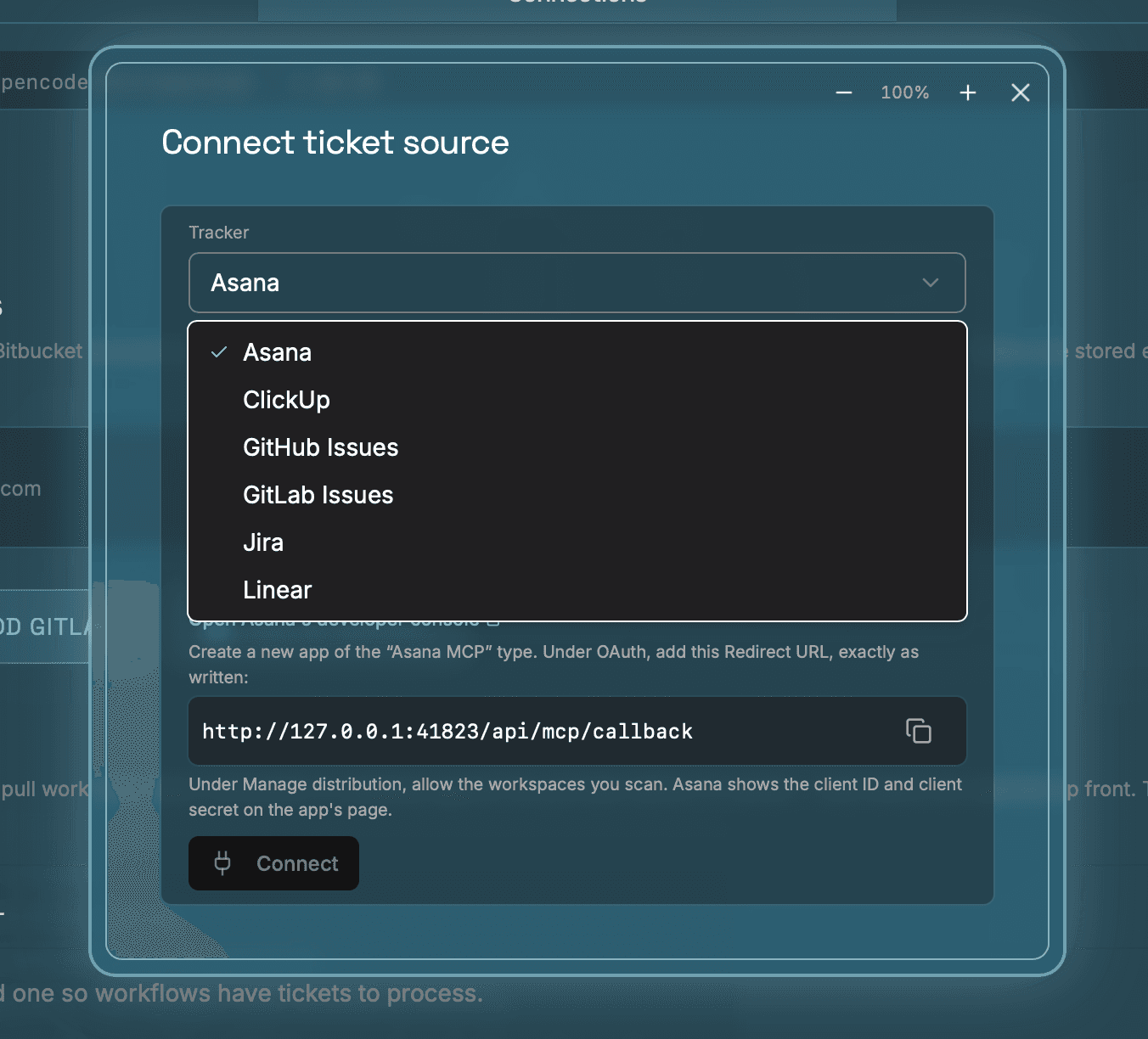
- Open the Tracker dropdown and choose your tracker — Jira, Linear, Asana, ClickUp, GitHub Issues, or GitLab Issues. A short blurb and the Connect button appear beneath it.
Step II Authorize in your browser
Click Connect. Expecto Centum opens your default browser at the tracker's sign-in and consent page. Approve the request there — review the access it asks for and confirm — then return to the app.
On success the connection is saved and labelled with the workspace it authorized against (for Jira, your site — e.g. acme.atlassian.net). There's nothing else to fill in: no token to copy, no email to enter.
- Asana — you first create an app in Asana's developer console and give the dialog its client ID and client secret; Connect Asana walks through it.
- GitHub Issues — the browser shows a short device code (e.g.
2625-75B7); the app displays the same code so you can confirm it matches before you approve. - GitLab Issues — before the browser opens, the dialog asks for your GitLab host (gitlab.com or your self-hosted address) and an application ID, so it can talk to your instance.
Step III Verify the connection
A row for the tracker now appears under Ticket sources, labelled with its workspace identity. The save only completes after a successful probe of the connection, so a visible row is the verification — if authorization is cancelled or fails, the dialog shows the error instead of saving.
Step IV Bind it to a workflow
A connected tracker doesn't yet know which tickets to pull — the connection is access, not a filter. Under the ticket source in the Config tab, set the filter that selects the ticket set the pipeline should process (for Jira that's a JQL query, e.g. project = ENG AND status = "To Do" AND labels = automate; other trackers offer their own filter fields) and save.
On the next run of the Scan stage, the orchestrator pulls the matching tickets through the binding and feeds them into Triage → Context → Verify → Plan → Code → Publish. If Verify determines a ticket can't be acted on (e.g. a bug report with no reproduction steps), it comments back on the ticket with the reason and stops the pipeline for that ticket.
Step V Disconnect or reconnect
Disconnect immediately if a machine is lost or you no longer want the pipeline acting as you.
- To disconnect: trash the ticket source in the Connections tab — this deletes the encrypted credentials from this device. Then, in the tracker's own connected-apps settings, revoke Expecto Centum's access so the grant is withdrawn at the source too.
- To reconnect: run the flow again from Step I and re-approve in the browser. The sign-in refreshes itself between runs, so there's no token to rotate on a schedule.
✦ Troubleshooting
The browser didn't open, or authorization never completed
The connection is only saved once you approve in the browser and land back in the app. If the browser didn't open, check that you have a default browser set, then click Connect again. If you closed the tab before approving, just retry — nothing is saved until consent succeeds.
Connected, but Scan finds no tickets
The connection inherits your own access — if you can't see a project or board in the tracker yourself, the pipeline can't either. Confirm your account can see the tickets your filter targets, and that the filter (e.g. the JQL query) actually matches them.
GitHub device code expired
The short code GitHub shows is valid for only a few minutes. If it lapses before you approve, the attempt fails harmlessly — start again from Step I to get a fresh code.
GitLab can't be reached
Double-check the host and application ID you entered. The host should be the full origin (e.g. https://gitlab.com or your self-hosted address) with no trailing path, and the application ID must belong to that instance.
Your org has to approve the app first
Some organizations require an admin to approve third-party OAuth apps before anyone can authorize them (common with SSO/SAML orgs). If consent is blocked, ask an admin to approve Expecto Centum for your workspace, then retry.