
Connect GitLab with an OAuth application
Bind your GitLab account to Expecto Centum so the Publish stage can open merge requests on your behalf — no personal access tokens to rotate, device-flow consent every session.
You'll need: a GitLab account (GitLab.com or a self-managed instance) with permission to register applications under User Settings, and the Expecto Centum desktop app installed.
Unlike GitHub — where a single App is shipped with the binary and every user authorizes the same one — GitLab has no universal OAuth application. Every GitLab instance (gitlab.com and each self-managed host) registers its own. You create an OAuth application on your instance, copy its Application ID, and paste that into Expecto Centum's Connections tab. The token that results from the device-flow consent is encrypted and stored on this device; nothing leaves the machine.
Step I Open the GitLab Applications page
Sign in to GitLab and open your user-level Applications settings at /-/user_settings/applications. On GitLab.com that is gitlab.com/-/user_settings/applications; on a self-managed instance, swap the host.
You can also get there from your avatar menu → Edit profile → Applications in the left rail.
User-owned applications (this manuscript) are the simplest — any GitLab user can create one and they're easy to revoke. Group owners can register group-scoped applications under Settings → Applications on a group page; instance admins can register admin-level ones. All three yield an Application ID that works identically with the desktop app — pick whichever matches how you want the consent to propagate.
Step II Create the OAuth application
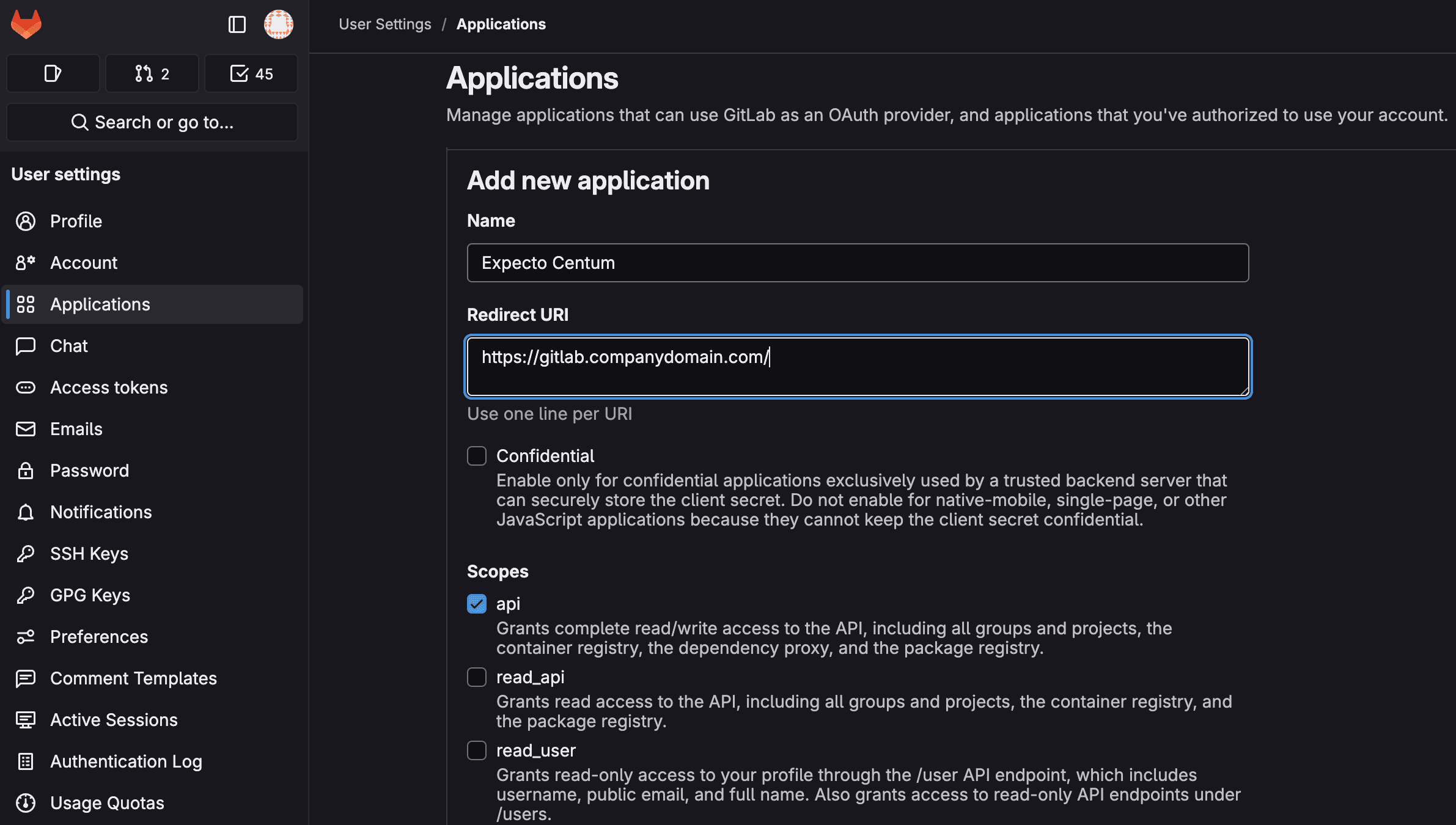
Scroll to Add new application and fill in the form:
- Name — anything recognizable. We suggest
Expecto Centum · {machine name}(e.g.Expecto Centum · mbp-m4) so you can tell which device a given App belongs to when revoking later. - Redirect URI — GitLab's form requires a well-formed URL here, but the device flow never visits it. Any HTTPS URL satisfies the validator — your instance's URL (e.g.
https://gitlab.com/) is a convenient choice. - Leave Confidential unchecked. The desktop app is a public client — it can't safely hold a client secret. A confidential App will reject the device flow with
invalid_client. - Under Scopes, check both
apiandread_user. Expecto Centum requests both during the device flow; an App that allows only one will fail the authorization withinvalid_scope.apiis the scope that actually authorizes MR creation and push; we requestread_useralongside it to fetch the authenticated username as the connection's identity. - Click Save application.
Step III Copy the Application ID
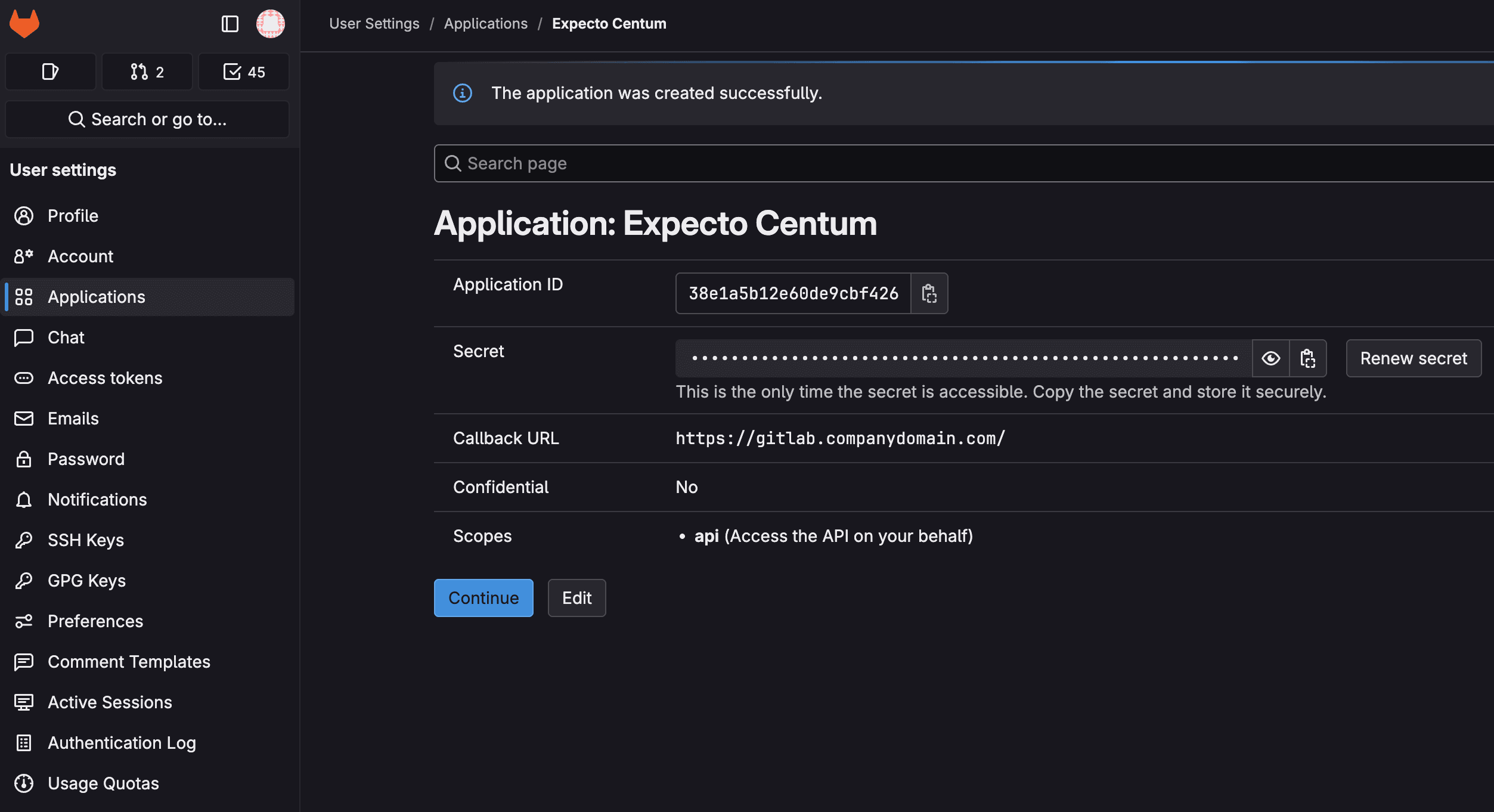
On save, GitLab shows the application details page. Copy the Application ID — the 64-character hex string — using the clipboard icon next to it. That's the only value Expecto Centum needs; the Secret field is for confidential clients and stays empty for our use.
Step IV Paste the Application ID into Expecto Centum
In the desktop app, open Config (the gear in the top-right of the dashboard) and select the Connections tab. Under Git provider connections, click Add GitLab. The dialog asks for:
- Label — how this connection appears in the Connections list (e.g.
GitLab (work)). Also used to derive the connection's stable id. - Host — e.g.
https://gitlab.comor your self-managed host. Self-hosted GitLab instances work here without any extra config. - Application ID — paste from Step III.
Click Authorize. A device-flow dialog opens showing a short user code. Click Open verification page — Expecto Centum hands the URL to your OS's default browser, which lands on <host>/login/device pre-filled with the code. Sign in (or pass SSO if your instance enforces it), confirm the scopes (api, read_user), and approve.
The device-flow dialog polls GitLab every few seconds; once you approve, it closes automatically and a new row appears in the Connections list showing your GitLab username, the host, and a trash icon for revoking later. The access token is encrypted and written to a machine-bound file alongside the app data — never logged, never sent off-device.
Step V Verify the connection
There's no separate verify step — the device flow completes only on a successful token exchange, so a row appearing in the Connections list is the verification. The subtitle shows the authenticated username and host; if either doesn't match what you expect, revoke (trash icon) and re-add.
When you run a pipeline that publishes to a GitLab repo, the publish stage resolves the connection bound to that repo and uses the stored token to push + open the merge request. The repo → connection binding is set in Config → Context when you add the repo.
Step VI Rotating or revoking the application
Revoke the application immediately if a machine is lost or a teammate leaves. To rotate on a schedule, destroy the old application and register a fresh one.
- To rotate: register a new application (Steps I–III) with a new name, open the Connections tab, trash the old GitLab row, then click Add GitLab and paste the new Application ID. Finally, click Destroy on the old application in GitLab.
- To revoke: trash the connection in Expecto Centum (removes the encrypted token locally), then open the application on GitLab and click Destroy so the token is invalidated server-side as well.
✦ Troubleshooting
“Redirect URI is invalid” when saving the app
GitLab requires a well-formed URL in the Redirect URI field — the value itself isn't used by Expecto Centum, but it must parse as a URL. If GitLab rejects your input, paste https://gitlab.com/ (or your instance URL) and save.
“invalid_client” during authorize
Almost always means the Confidential checkbox was left on. Confidential applications require a client secret on every token call, which the desktop app doesn't send. Edit the application, uncheck Confidential, click Save application, then retry Authorize.
Less commonly, the Application ID you pasted doesn't match any App on this instance — double-check it on the GitLab Applications page (the Show page, not the Edit page).
Another case is a Host / instance mismatch — you registered the App on a self-hosted GitLab (e.g. https://gitlab.bigcorp.com) but entered https://gitlab.com in the Host field (or vice versa). The device flow then calls the wrong instance's /oauth/authorize_device with an Application ID that doesn't exist there, and gitlab.com returns invalid_client. Each GitLab instance has its own Application registry — the Host in the Add GitLab dialog has to be the host the App was registered on.
“invalid_scope” during authorize
The OAuth application doesn't allow both scopes the device flow requests. Edit the application, check both api and read_user under Scopes, save, and retry.
“403 Forbidden” on a specific project during publish
OAuth tokens inherit your GitLab permissions exactly — if you can't see the project in a browser, the token can't either. Ask a project maintainer to grant at least Developer on the relevant project.
Self-managed instance with SSO / SAML
OAuth applications respect your instance's SSO — you'll be walked through the SSO flow on the browser page during Authorize, and the resulting token inherits any group access restrictions. If your admin enforces Expires at on OAuth tokens, you'll need to re-authorize when it lapses (trash the connection and re-add).