
Connect Bitbucket with an Atlassian API token
Bind Bitbucket to Expecto Centum so the Publish stage can push commits and open pull requests on your behalf — an Atlassian API token, scoped narrowly to the seven Bitbucket permissions the pipeline actually needs.
You'll need: an Atlassian account with access to the Bitbucket workspaces you want the pipeline to publish into, the email address registered on that account, and the Expecto Centum desktop app installed.
Bitbucket Cloud authenticates with an Atlassian API token. Tokens authenticate as HTTP Basic with your Atlassian email as the username and the token as the password; the desktop app combines the two on every request. The token inherits your Bitbucket permissions exactly, so whatever your user can do in the browser, the pipeline can do through the token.
Bitbucket uses Atlassian's API token with scopes wizard. The scopes are granular and don't imply each other — every one of the seven the pipeline needs has to be ticked individually. The resulting token is encrypted and stored on this device; nothing leaves the machine.
Step I Open the Atlassian API tokens page
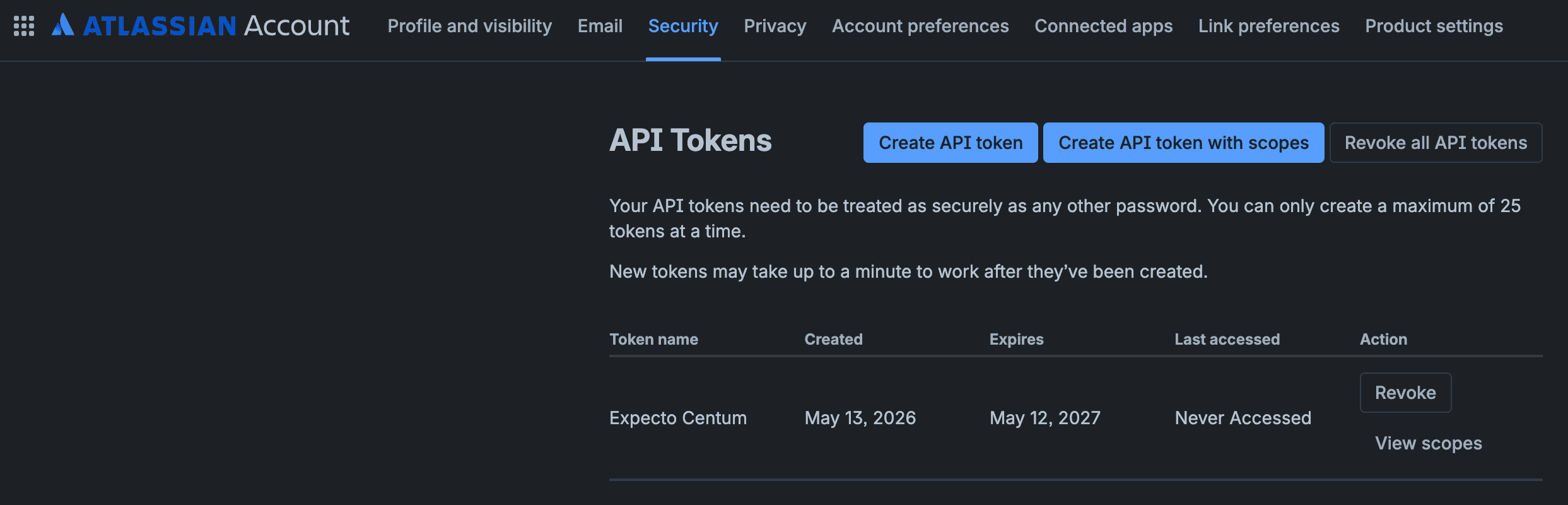
Sign in to your Atlassian account and open the API tokens page at id.atlassian.com/manage-profile/security/api-tokens. The page lists any existing tokens and exposes two creation buttons in the top right.
You can also reach it from your Atlassian avatar → Manage account → Security → Create and manage API tokens.
Click Create API token with scopes. The plain Create API token button next to it produces a Jira-style token with no scopes attached — it authenticates as your user against the Bitbucket API but every request comes back 403 because no permissions were granted. The scoped wizard is mandatory for Bitbucket.
Step II Create the token with scopes
The wizard walks you through four panes — Name and expiry, Select app, Select scopes, and Create token. Fill them in order.
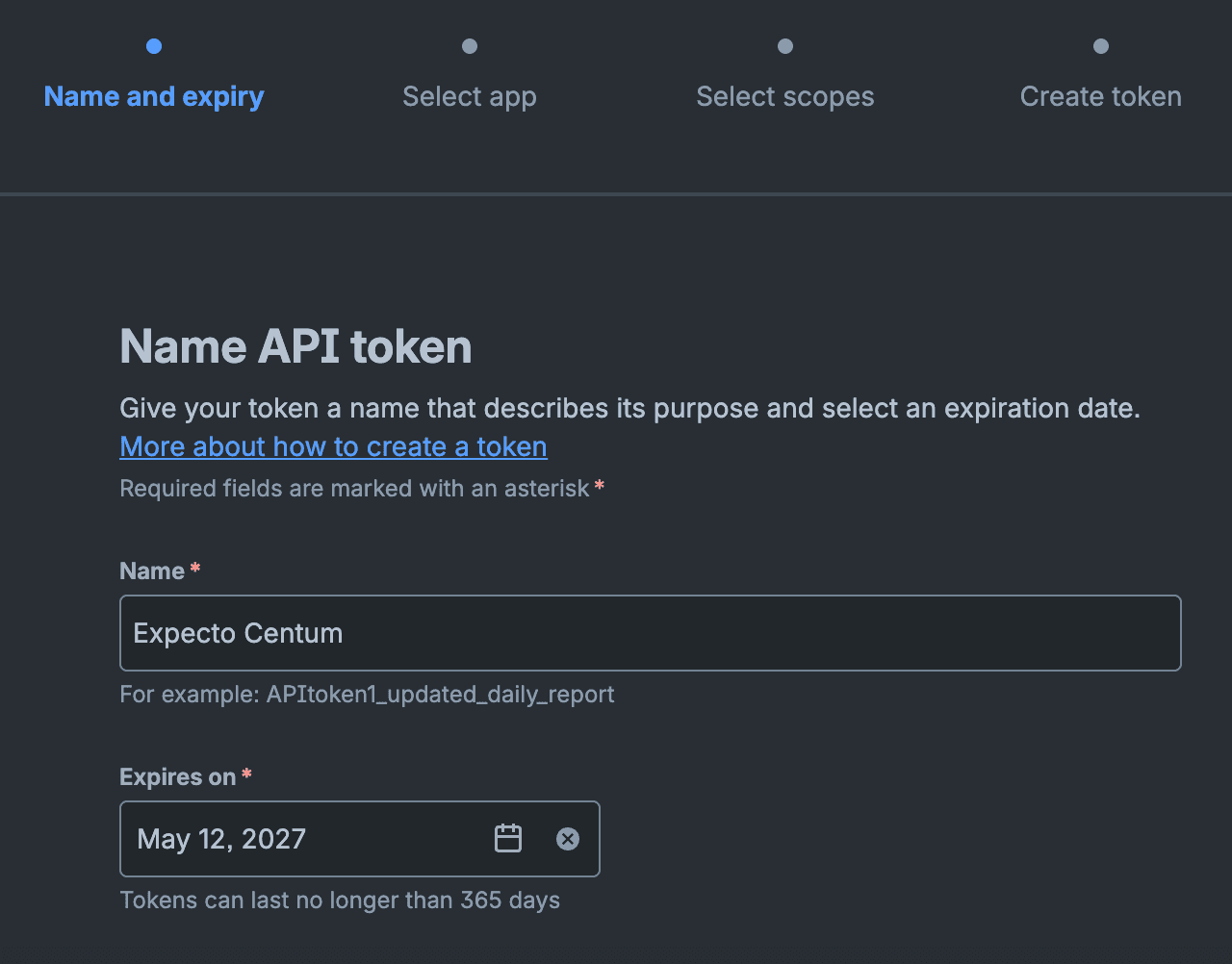
On Name and expiry:
- Name — something you'll recognize later. We suggest
Expecto Centum · {machine name}(e.g.Expecto Centum · mbp-m4) so you can tell which device owns the token when revoking. - Expires on — pick a date up to 365 days out (Atlassian's hard ceiling). Tokens can't be renewed in place; when this date hits, you'll repeat Steps I–III and revoke the old one.
- Click Continue.
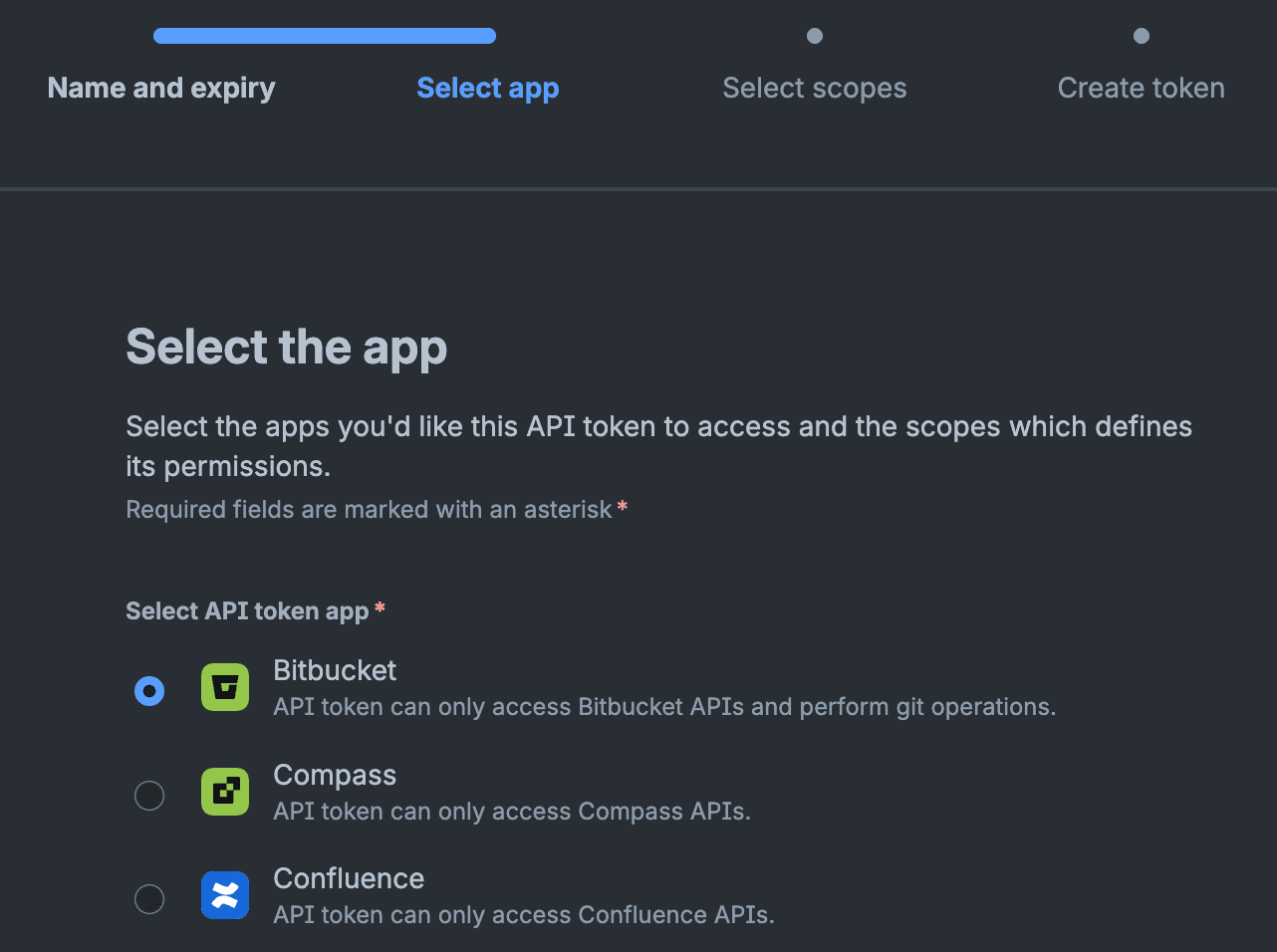
On Select app:
- Select API token app — choose Bitbucket. Each token can only access one Atlassian product, so a Bitbucket token won't talk to Jira and vice versa.
- Click Continue.
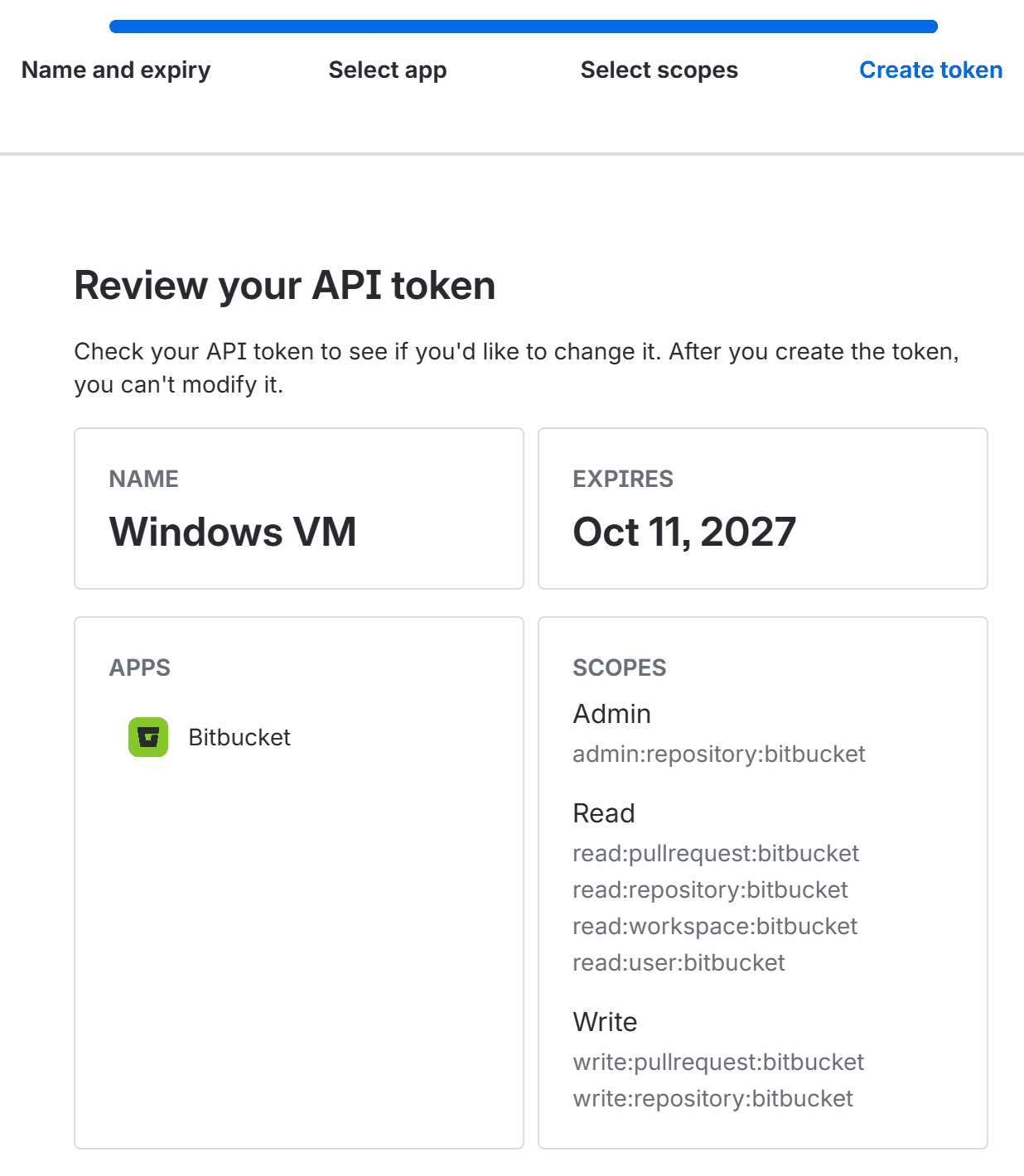
On Select scopes, tick exactly these seven. Atlassian's scopes don't imply each other, so each one has to be selected individually — start with the admin scope and the four read scopes:
admin:repository:bitbucket— create a new repo when you pick Create new repo instead of an existing one; Bitbucket refuses to create a repo without it, even with the write scope granted.read:pullrequest:bitbucket— find open PRs and read merge state for the Reaper stage.read:repository:bitbucket— list and clone repos.read:user:bitbucket— used by the initial reachability check (GET /2.0/user); without it the token verifies as403even when every other scope is fine.read:workspace:bitbucket— find your workspaces, to list their repos and to choose where a new repo goes: the first workspace you administer, or the first you belong to when you administer none.
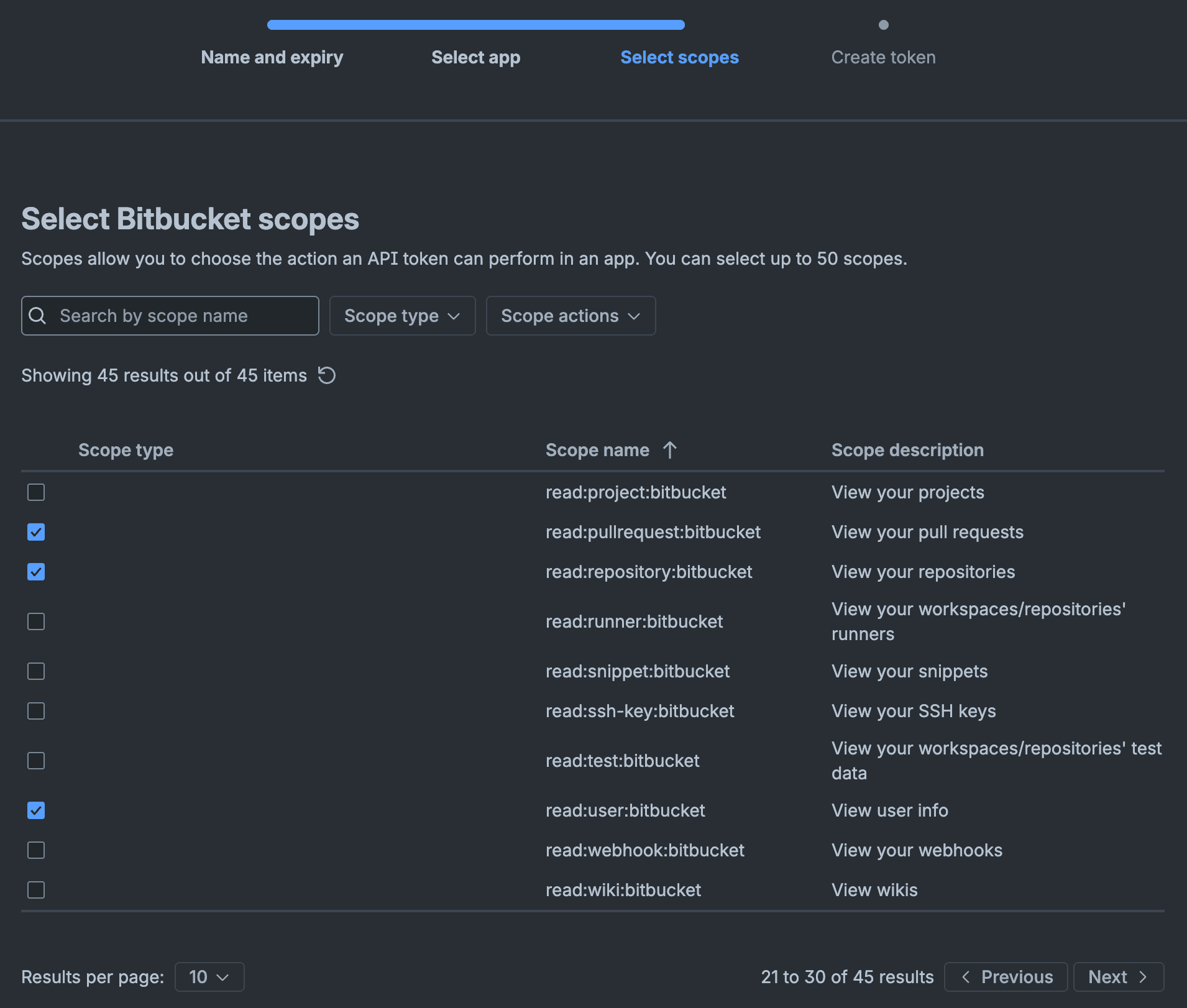
read:workspace sits one page back in the alphabetical list — scroll up or change the sort.Then the two write scopes:
write:pullrequest:bitbucket— open the PR for each ticket.write:repository:bitbucket— push commits.
None of the other 38 scopes are required. Click Continue.
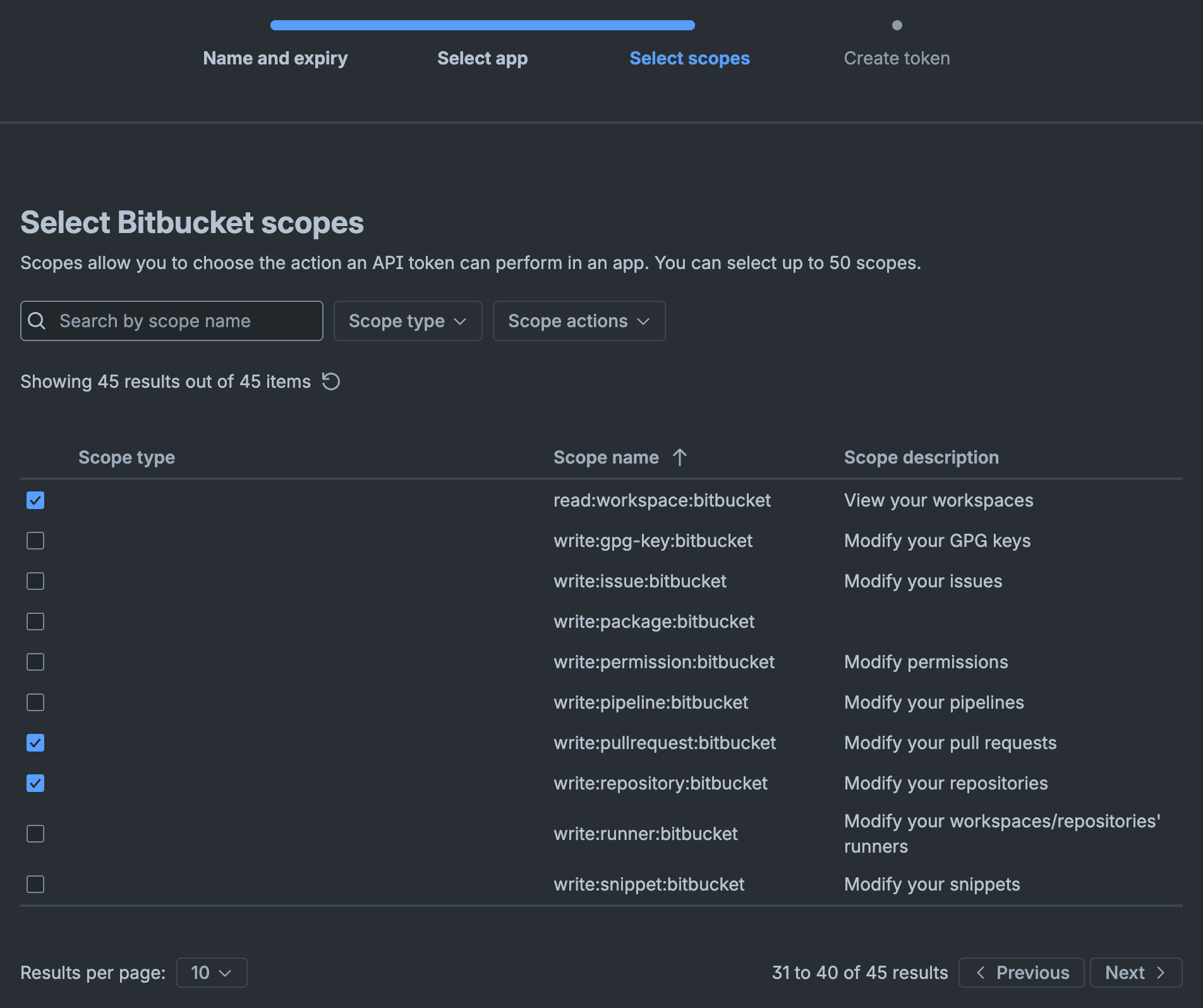
read:workspace from the previous page.On Create token, review the summary. The Admin section should list one scope, the Read section four and the Write section two — if anything is missing, hit Back rather than Create token, because the token can't be edited after creation. When everything matches, click Create token.
Step III Copy the token
Atlassian shows the token value once on the Create token pane. Click Copy and keep the window open until you've pasted it into Expecto Centum — the token starts with ATATT and runs about 192 characters.
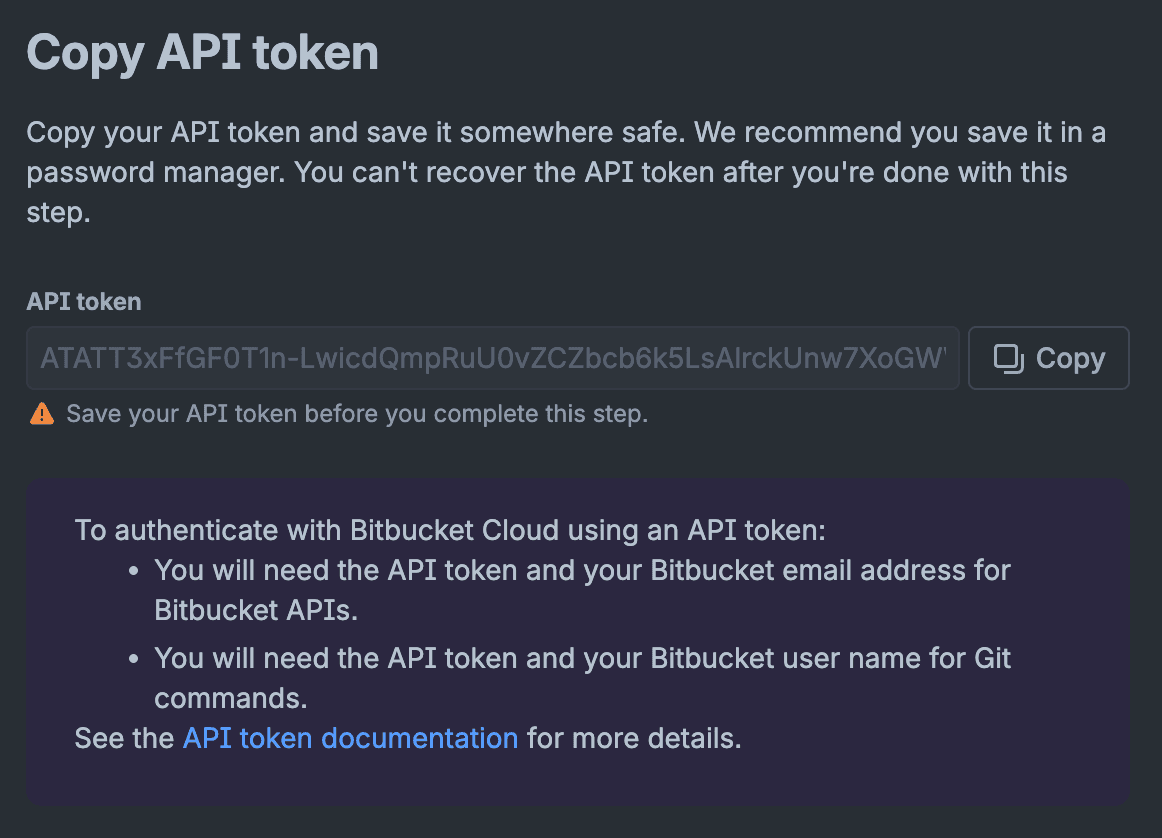
Atlassian will not show this token again after you navigate away from this pane. If you lose it before pasting, revoke the token from the API tokens list and start over at Step II.
Step IV Paste into Expecto Centum
In the desktop app, open Config (the gear in the top-right of the dashboard) and select the Connections tab. Under Git provider connections, click Add Bitbucket. The dialog asks for:
- Label — how this connection appears in the Connections list (e.g.
Bitbucket (work)). Also used to derive the connection's stable id. - Host —
https://bitbucket.org. - Atlassian email — the email registered on the Atlassian account that minted the token. Bitbucket's API uses Basic auth, so the email pairs with the token on every request.
- API token — paste the value you copied in Step III. Input is password-masked; the value is never logged.
Click Save. Expecto Centum immediately probes Bitbucket with the credentials — a bad token, wrong email, or unreachable host rejects the add up front with a specific error (no half-registered connection lands on disk). On success, the token is encrypted and written to a machine-bound file alongside the app data, and the new row appears in the Connections list showing your Bitbucket username, the host, and a trash icon.
Step V Verify the connection
There's no separate verify step — the probe runs as part of Save, so a row appearing in the Connections list is the verification. The subtitle shows the authenticated Bitbucket username and host; if either looks wrong, trash the row and re-add with the correct email or host.
When you run a pipeline that publishes to a Bitbucket repo, the Publish stage resolves the connection bound to that repo and uses the stored token to push + open the PR. The repo → connection binding is set in Config → Context when you add the repo.
Step VI Rotating or revoking the token
Rotate before the expiry date, and immediately if a machine is lost or a teammate leaves. Atlassian doesn't renew tokens in place — rotating means minting a new one and discarding the old.
- To rotate: mint a new token (Steps I–III) with a fresh name, trash the existing Bitbucket connection in the Connections tab (removes the encrypted token locally), then click Add Bitbucket and paste the new value. Finally, revoke the old token on the Atlassian API tokens page so it's invalidated server-side.
- To revoke: open the Atlassian API tokens page, find the token by its name, and click Revoke. Then trash the connection in Expecto Centum so the stale entry is purged locally.
✦ Troubleshooting
“401 Unauthorized” when saving
Double-check that the Atlassian email matches the account that generated the token. Tokens are tied to a specific Atlassian user — a token created by alice@acme.com won't authenticate as alice@gmail.com, even if the two accounts are linked. Also confirm the token hasn't been revoked or expired on Atlassian.
“403 Forbidden” on the probe with all seven scopes ticked
Almost always means read:user:bitbucket was missed. The probe calls GET /2.0/user as a reachability check, which requires that scope specifically — without it the token comes back valid and 403, which looks like a permissions problem on a workspace but is actually a missing scope on the token itself. Mint a new token with read:user:bitbucket ticked and re-add.
“403 Forbidden” on a specific repo during publish
The token inherits your Bitbucket permissions exactly — if you can't push to the repo in a browser, the token can't either. Ask a workspace admin to grant at least Write on the relevant repository, or move the repo into a workspace where you have it.
Bitbucket evaluates workspace permissions before repo permissions, so a workspace-level Read can still block writes even when the token's write:repository:bitbucket scope is present. The scope authorizes the API call; your workspace role still has to authorize the underlying action.
Token rejected even though ‘Create API token’ succeeded
You clicked the wrong button on the API tokens page — the plain Create API token (Jira-style) mints a scopeless token that authenticates but can't see any Bitbucket resource. The Bitbucket flavor requires Create API token with scopes. Revoke the wrong one from the API tokens list and start again at Step I.
Corporate SSO / SAML orgs
API tokens still work for your individual user even if your Atlassian org enforces SAML. If an admin has disabled API token access org-wide, you'll need them to re-enable it for the account Expecto Centum should authenticate as.